
You can use Training Mode in Riflematch.com to both time your training stages in the same way you can use it while ROing a match. With AI-supported shot detection and the possibility to log hits/misses you can follow up you stages in detail. You can also set stages you do often, like the skillstage, and use your logged data to follow up progress over time. In this article we will cover the basics of both features.
Getting started in Training mode
First navigate to Training mode either by using the menu or the button on the landing page. Once there you see the simplified timer mode which will let you time a stage and count the timing and number of shots fired. Pretty straight forward. Once you are done, click Shot Log below the Start/Stop button, there you can see the shot timing collected by the timer.
Getting into the good stuff
To get into settings click on the little gear icon in the top roght corner and you will see a user interffce looking like below
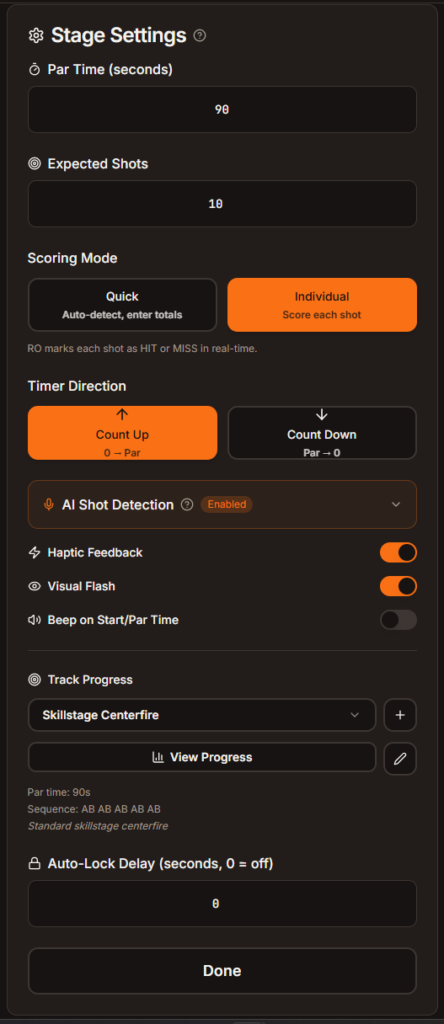
Functionality from top to bottom
- Par time, the…ehm.. par time, you get it. The max time for completing the stage.
- Expected shots, this is where you enter how many shots are expected for the stage. This will be extrauseful when you use Individual scoring mode to track hits/misses.
- Scoring mode, here you have 2 options: Quick will collect the shot timing but you enter number of hits/misses manually afyterwards. Individual let’s the RO determine if a shot was hit/miss whilethe stage is running. This is what gets you the good data for reference
- Timer direction as per your preference
- AI shot detection this is food for another post later. Just keep it enabled and you’ll be good to go for now
- Haptic Feedback, Visual Flash has to do with how the UI reacts during timing. Just leave it
- Beep on start/Per time do you want a beep or not?
- Track Progress go to the last chapter in this post to read more.
Using the timer in Individual Mode
So, set your par time, expected shots and select Individual mode. Once you press start you will get 2 large buttons where you can record hits/misses. An indicator will show the collected number of hits and misses. If shooting is done before the time runs out press Stop to stop capturing shots.
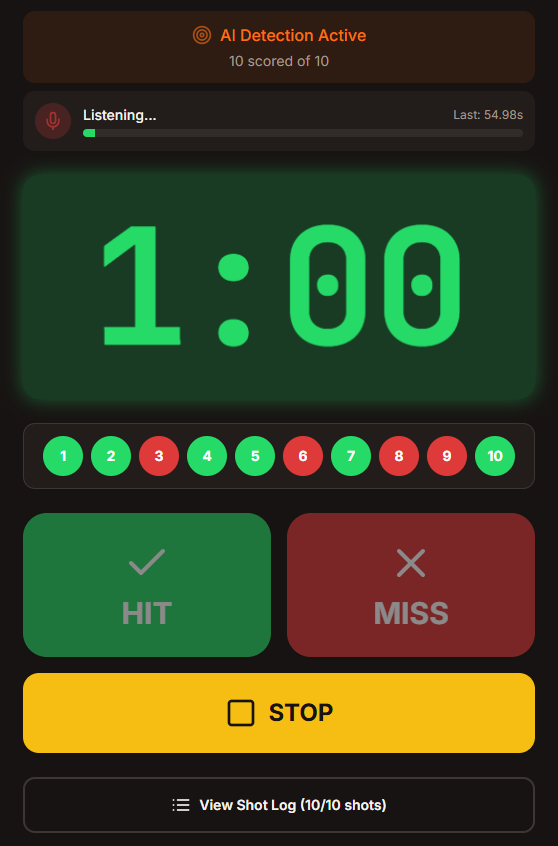
When you are done recording shots you can click View Shot Log to see details about the shots.
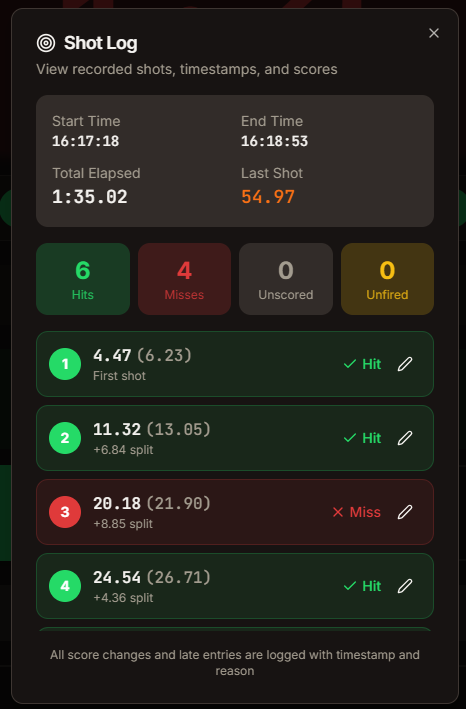
Shot data collected is Hit/Miss, Time and Split time between shots. The time in paranthesis is the time you as an RO registered the shot. This will be used as fallback if the shot isn’t ipicked up by the device. In match mode you can go in and manually edit hist/misses.
Tracking Progress
If you want to take your training to the next level you can specify certain training events that you want to collectdata on and compare over time. Go into settings to the Track Progress area. To create a new excercise log press the + button.
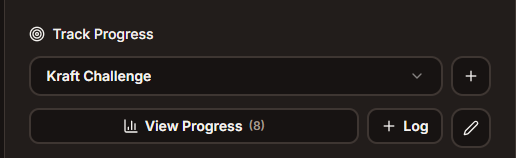
You have two options:
Stage performance tracking lets you define a stage with par time, max points and shooting sequence. Shooting sequence let’s you see data on your average move time between positions. When you select your excercise before you start the timer you will be prompted to add the stage results to th elog after finishing the stage.
Point / Group size tracking lets you track metric performance over time, it could be points trom numbered targets or group sizes shot from different positions, like the Kraft Challenge. You can set up what unit to use and add as many named measurements as you want. To add another datapoint you select the excercise in the dropdown box and press + Log.
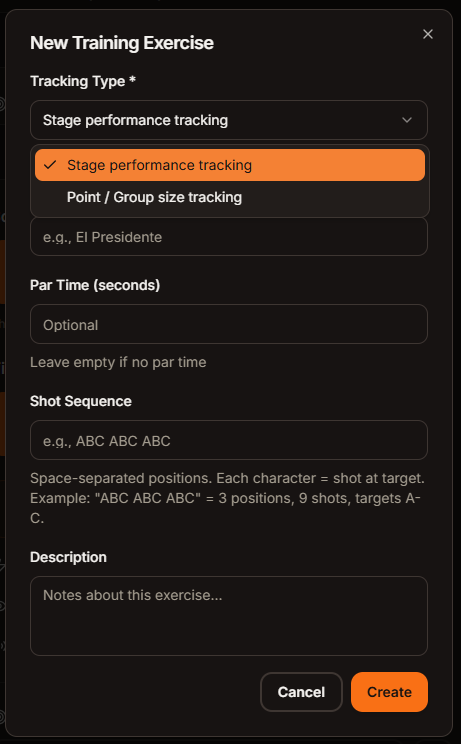
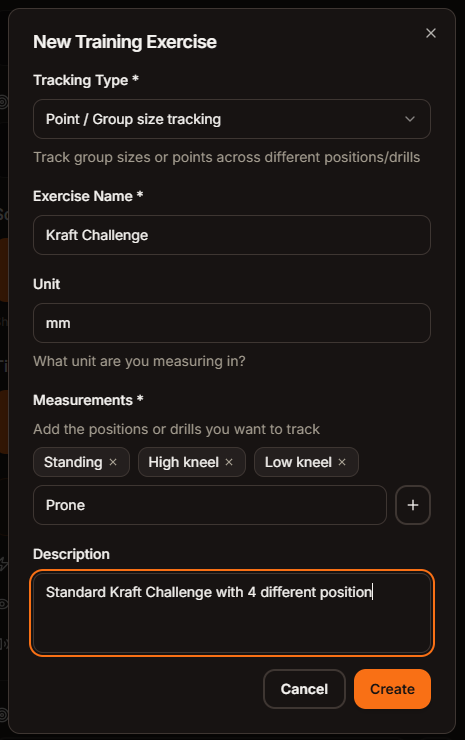
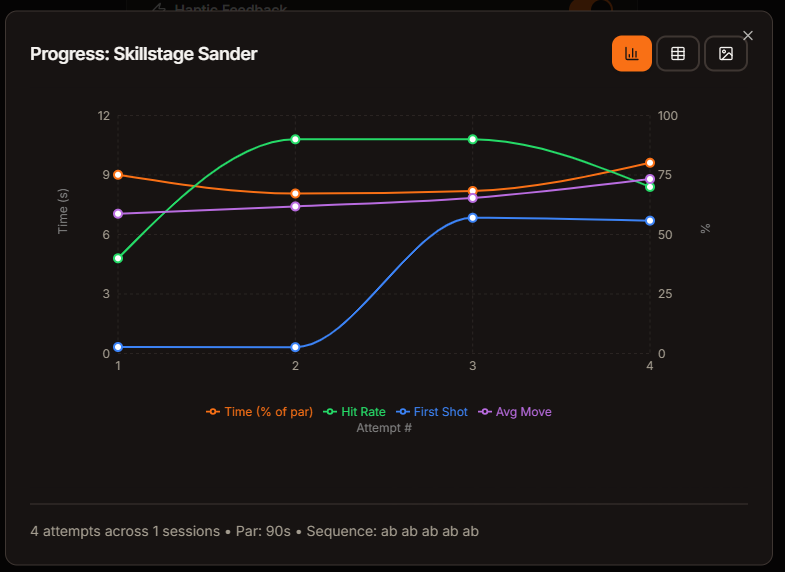
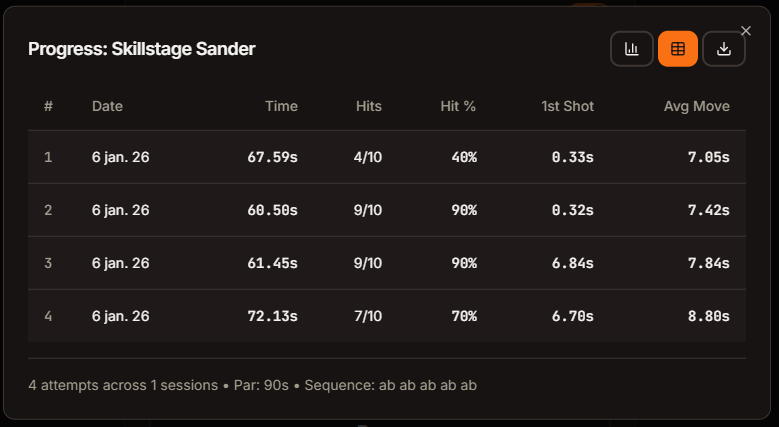
Once you have shot a couple of sessions you can view your progress in a graph or list by pressing the View Progress button. Here you can also download the graph as a picture for sharing.
Upptäck mer från
Prenumerera för att få de senaste inläggen skickade till din e-post.
Ett svar på ”Riflematch Training Mode and Progress Tracking”